|
Navigation: Getting Started > Help Topics |
Send comments on this topic.
|
|
Navigation: Getting Started > Help Topics |
Send comments on this topic.
|
Typically, any help system or printed documentation includes a hierarchical Table of Contents that reflects its structure and may include topics, sub-topics, heading items, links to other topics, and links to external URLs.
The Project Manager pane in HelpSmith displays the structure of your help project and allows you to add and edit the Table of Contents (TOC) items, to organize the TOC's items, and also to select topics for editing in the built-in word processor.
If you do not see the Project Manager pane, click the View tab and then click Project Manager.
A TOC item can have one of the following types:
•Topic - a help topic that has a document and topic-specific properties.
•Heading - a chapter item that does not have a document.
•Web Page - a link to an external webpage or document (for example, a PDF document) located on a web server.
•Topic Link - a link to another topic of the same help project. This item type is useful when you need to insert a link to an existing topic into another place of the Table of Contents.
Remark: TOC items of all types can include sub-items.
1.On the Project tab, in the Topics & Templates group, click Add.
2.In the dialog, select an item type, enter a title and set other item properties.
3.Click OK.
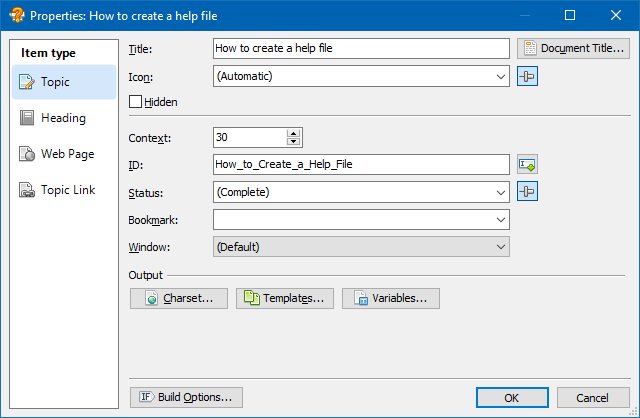
The Topic dialog allows you to add different types of TOC items
1.In the Project Manager pane, click a TOC item to select it.
2.On the Project tab, in the Topics & Templates group, click Delete.
1.In the Project Manager pane, click a TOC item to select it.
2.On the Project tab, in the Topics & Templates group, click Properties.
3.In the dialog, modify the properties you want to change.
4.Click OK.
To open a topic for editing in the built-in word processor, click the topic you want in the Project Manager. HelpSmith includes a full-featured word processor that allows you to change text formatting, insert hyperlinks, tables, and use graphic and videos in your help system. For more details on working with the word processor, please refer to this topic.
The Project Manager allows you to organize the TOC items into a hierarchical structure. When you create a new TOC item, you can point that it should be added before or after the currently selected item, or that it should be added as a child topic (sub-topic) of the currently selected item.
To change the location of an existing TOC item:
1.In the Project Manager, select the item that you want to move.
2.On the Project tab, in the Topics & Templates group, use the Move Left, Move Up, Move Down, Move Right buttons.
Also to move the selected item, you can use the following keyboard shortcuts:
Ctrl+Shift+Left Arrow, Ctrl+Shift+Up Arrow, Ctrl+Shift+Down Arrow, Ctrl+Shift+Right Arrow.
Alternatively, you can move selected items using the drag-and-drop method.
Most actions on TOC items such as editing, deleting and moving can be performed not only on a single item, but also on a number of selected items. To select more than one item in the Project Manager, click the items you want while holding down the Ctrl key.
Copyright © 2007-2024 HelpSmith.com


